RelayX Screen
RelayX Screen
Objective
- To better understand the basic functions of the RelayX screen
Environment / Applies To
- RelayX Devices
Procedure
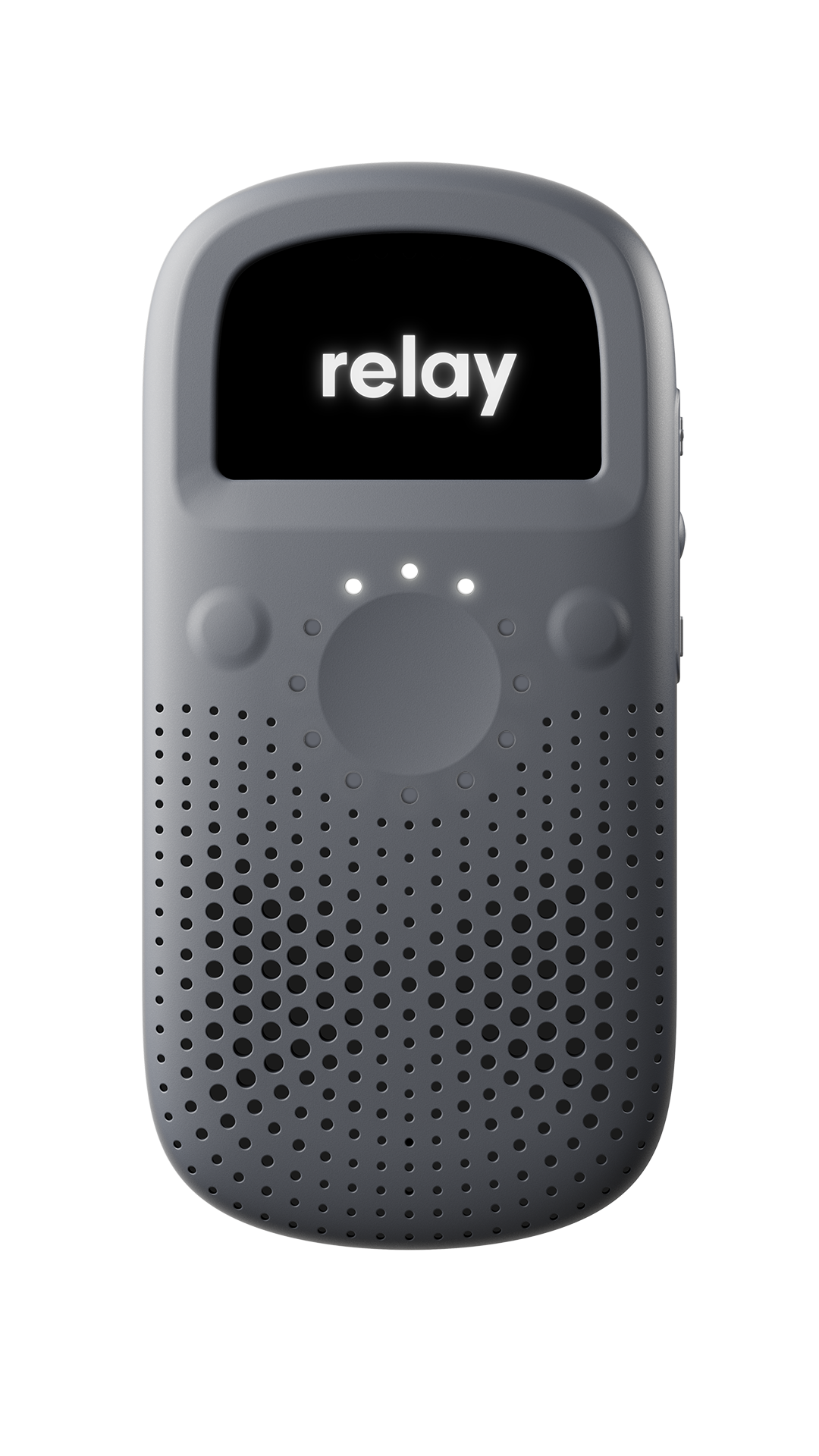
Activate Screen:
- Select either the right or left navigation button on the face of the RelayX
- The home screen will have the current time, Wifi/Cell Connectivity, Battery, Current Channel and the Device Name
Navigating through the RelayX Screen:
- Right Navigation Button: Used to select options when using the screen
- Left Navigation Button: Used to move down through the menu options
- Click into the Menu using the top Right navigation button
- Selecting Power Options: The option to power off or reboot the device
- Pair Bluetooth: Scan for nearby bluetooth headsets to pair. When selecting this option, your RelayX will announce Scanning for available headsets in pairing mode and the LED's will spin blue while searching for a headset to pair
- About Device: Details of the RelayX Device, some of which may be needed if our support team is troubleshooting. You will get a Get Help option where you can upload history logs of device activity if our support team needs to investigate a potential problem
Additional Notes:
- Rebooting the device can be used as basic troubleshooting, however if you are experiencing a problem with your RelayX Device reach out to our Support team for more detailed troubleshooting